
Oracle CPQ Änderungen 5X schneller ausliefern
KI-gestützte BML/BMQL Entwicklung, Oracle CPQ Backups, Validierungs-Workflows und zuverlässiger Artefakt-Sync aus einem VS Code Workspace.
macOS • Windows • Linux
The VS Code extension for Oracle CPQ Cloud (BigMachines) developers. Develop, sync, validate, and back up Oracle CPQ projects with BML/BMQL tooling, AI-assisted completions, and environment-aware workflows.
Quick Start
- Install the extension from the VS Code Marketplace
- Open a folder and run CPQ DevKit™ for Oracle: Set Up Project
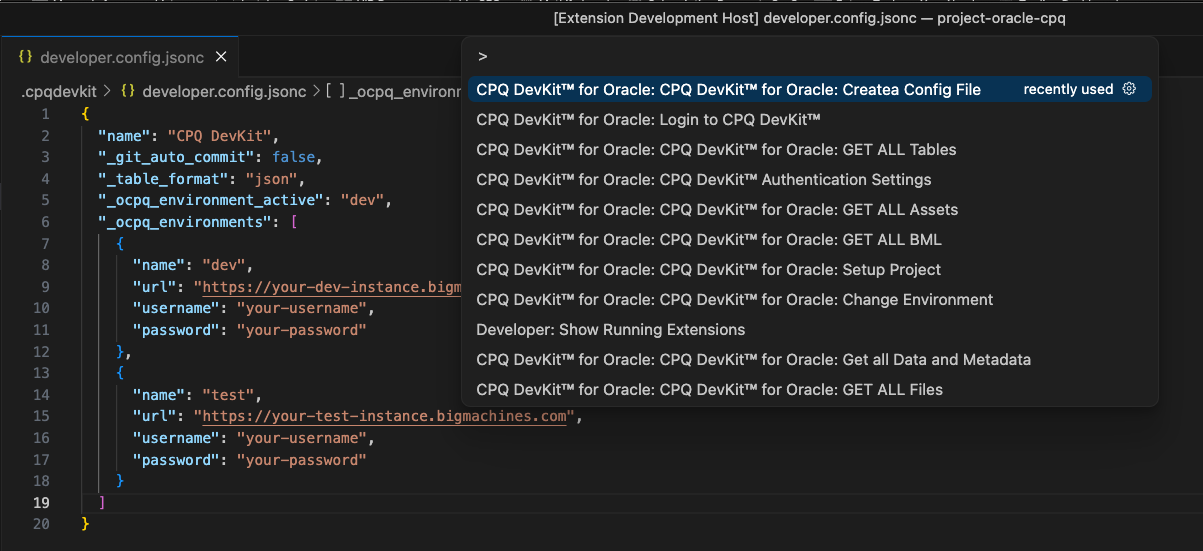
- Create your local developer config with Create Developer Configuration File or open both config files with Open Configuration Files
- Add your
*.bigmachines.comenvironments and, if needed, sign in to CPQ DevKit™ for AI and cloud-connected workflows - Download files, functions, or tables and start editing locally
The extension scaffolds project.config.jsonc, .cpqdevkit/developer.config.jsonc, folder conventions, .gitignore entries, status bar environment switching, and guided onboarding for Oracle workspaces.
What's New in 2.6.2
- Consistent command titles across the Command Palette, Actions menu, explorer, walkthroughs, and tests
- New workspace impact analysis commands for tracing BML, data table, pricing, integration, and config references locally
- Hardened build and packaging pipeline for the dual Node + browser extension bundle
- Marketplace-ready metadata, release notes, and a leaner VSIX package
See full release notes in CHANGELOG.md.
Features
BML/BMQL Authoring
- Autocomplete helpers and snippets for day-to-day BML/BMQL work
- Formatter and beautifier support for
.bml,.json, and.xml - Go to Definition for
util.*/commerce.*functions and BMQL Data Table references Create BML Functionscaffolding in the correct project folder- Built-in constants, attributes, and safe loop snippets for common Oracle CPQ patterns
Project Sync and Environment Management
- Config-driven project setup with predictable folder structure
- Fast environment switching for
dev,test,uat, andprodstyle workflows - Dedicated downloads for files, assets, parts, products, BML, data tables, pricing artifacts, integrations, and admin resources
- Action palette, explorer view, walkthrough onboarding, and VS Code task integration for common workflows
- Status bar environment visibility inside the editor
Workspace Impact Analysis
Find Workspace Impactto trace the current selection, symbol, or file across downloaded Oracle CPQ artifactsSearch Workspace Artifactsto search local BML, data tables, pricing, integrations, metadata, and configuration in one report- Outbound dependency extraction for BML functions so you can see referenced
util.*,commerce.*, and BMQL table usage
Deploy, Validate, and Pricing Workflows
- Save, deploy, test, and validate BML functions from VS Code
- Calculate pricing against the target Oracle CPQ environment
- Diagnose workspace configuration issues and run a command self-test when troubleshooting
Backup and Migration
- Create full Oracle CPQ backups from the extension
- Capture site snapshots for migration or recovery workflows
- List available backups and export migration packages from CPQ DevKit-managed services
AI-Powered Code Completions
- Inline completions for BML and BMQL files
- Configurable
gpt-4oorclaude-3-5-sonnetmodels - Up to 10 lines before and after your cursor plus file path metadata are sent when completions are requested
Table Views and Format Conversion
- Preview JSON, CSV, and XML data as a searchable table
- Convert JSON, XML, and CSV files between formats without leaving VS Code
Commands
All commands are available from the Command Palette (Ctrl+Shift+P / Cmd+Shift+P) under the CPQ DevKit™ for Oracle category.
Authentication
- Sign In — authenticate with CPQ DevKit™ services
- Sign Out — clear the current CPQ DevKit™ session
- Open Authentication Settings — open authentication configuration
Setup and Workspace
- Open Actions — open the action palette for common Oracle workflows
- Set Up Project — initialize project configuration, folders, and
.gitignore - Create Developer Configuration File — scaffold
.cpqdevkit/developer.config.jsonc - Open Configuration Files — open
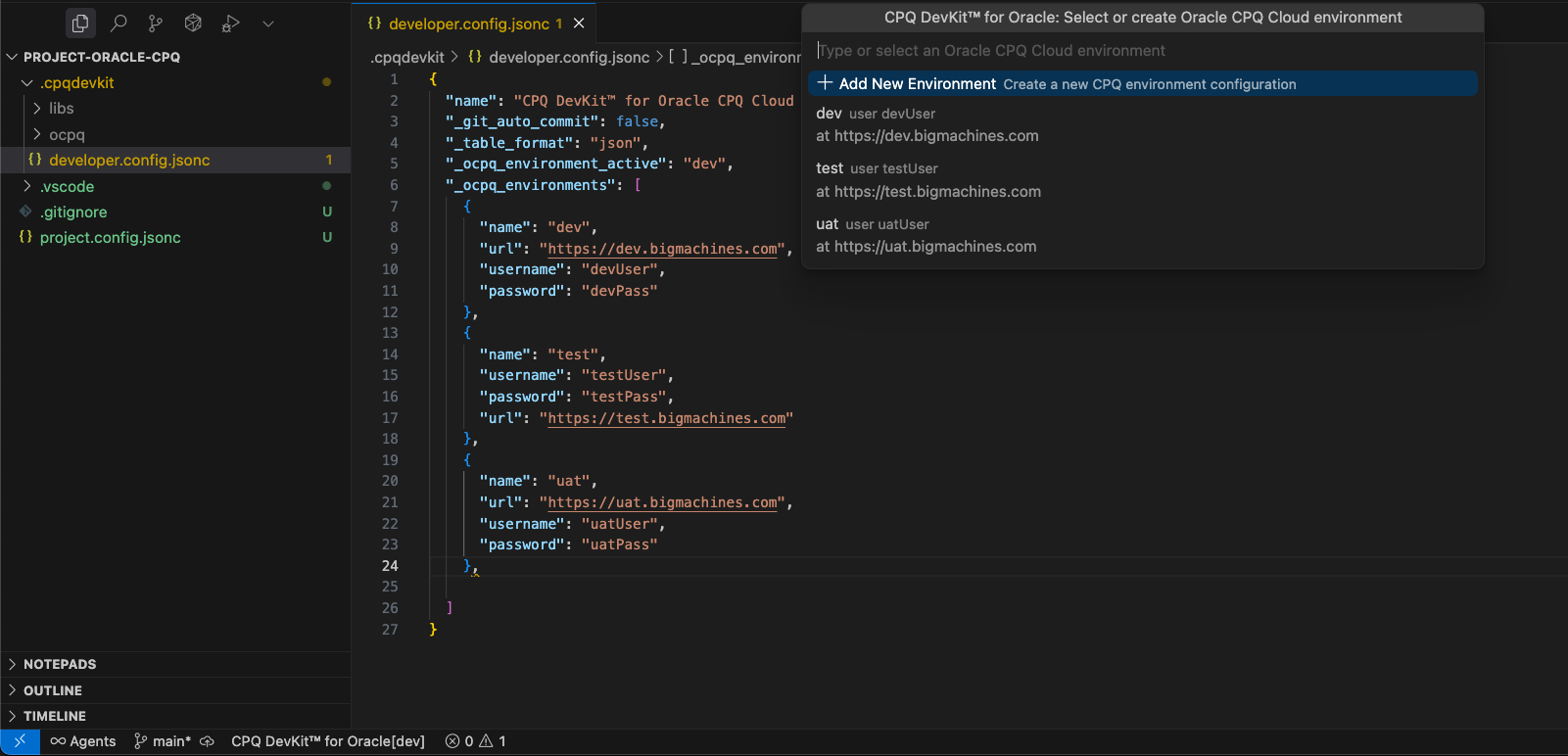
project.config.jsoncand.cpqdevkit/developer.config.jsonc - Change Environment — switch active Oracle CPQ environments
- Diagnose Workspace — validate configuration and active environment setup
- Show Status Bar — re-enable the environment status bar
- Open CPQ DevKit Website — jump to the CPQ DevKit web app
Authoring and Utilities
- Create BML Function — create a new
util.*orcommerce.*BML file - Find Workspace Impact — analyze the current selection, symbol, or file across the local CPQ workspace
- Search Workspace Artifacts — search downloaded Oracle CPQ artifacts by term and open a consolidated report
- View as Table — preview JSON/CSV/XML as a searchable table
- Convert to JSON — convert XML or CSV files to JSON
- Convert to XML — convert JSON or CSV files to XML
- Convert to CSV — convert JSON or XML files to CSV
- Self-Test All Commands — run a built-in command availability check
Downloads and Sync
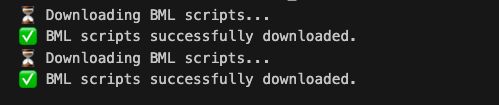
- Core project downloads — Download Files, Download Assets, Download Parts, Download Products, Download BML Functions, Download Data Tables, Download Data and Metadata, and Download Data Table
- Pricing and commerce artifacts — Download Pricing Rules, Download Pricing Options, Download Pricing Lookup Types, Download Pricing Attributes, Download Pricing Models, Download Pricing Charge Definitions, Download Pricing Charge Attributes, Download BOM Item Setups, and Download Price Books
- Site and admin artifacts — Download Shopping Carts, Download Accounts, Download Groups, Download Eligibility Rules, Download SSO Configuration, Download Document Generators, Download Email Generators, Download RTE Templates, Download Global Branding, Download Global Dictionary, Download Integrations, Download Conversion Units, Download Parts Setup, Download Extract Data Definitions, Download DOCX Merge Definitions, Download DOCX Compare Definitions, Download External Configurator, Download Favorites, Download Saved Searches, Download User Navigation Links, Download User Personalizations, Download Tasks, Download Intelligence, Download Metrics, Download Performance Debugger Logs, and Download Usage Metrics
Deploy, Validation, and Backup
- Calculate Pricing — run pricing calculations against Oracle CPQ
- Deploy Functions — deploy BML functions to the active environment
- Save Functions — save local BML changes to Oracle CPQ
- Test Functions — execute BML test runs on the server
- Validate Functions — validate BML before deployment
- Create Full Backup — create a backup package for the current environment
- Create Site Snapshot — capture a site-wide Oracle CPQ snapshot
- List Available Backups — browse and export available backup packages
AI
- Set AI API Key — configure your API key for AI completions
- Toggle AI Completions — enable or disable inline AI suggestions
- Clear AI API Key — remove the stored AI API key
Settings
Configure the extension under cpqdevkit.* in VS Code Settings.
Requirements
- VS Code 1.105+
- Oracle CPQ Cloud environment with REST API access
- BigMachines user with:
FullAdminUser Administratorenabled- membership in the
All Accessadministrator group
- CPQ DevKit™ account and API key for AI-assisted features
Project Configuration Files
To use CPQ DevKit™ for Oracle, create two configuration files in your project directory. Set Up Project and Create Developer Configuration File can scaffold these for you.
1. project.config.jsonc — Project Configuration
This file defines project-wide folder conventions and Oracle CPQ preferences:
Key options:
apiVersion— Oracle CPQ API version such asv19,v17, orv15tableFormat— downloaded table format (jsonorcsv)folderSettings— local folder names for files, parts, tables, BML, assets, pricing, metadata, dictionary, and integrationsfileSettings— BML prefixes, meta/test tag behavior, and default data format preferences
2. .cpqdevkit/developer.config.jsonc — Developer Configuration
This file stores your personal environment credentials. Keep it out of source control.
Security & Privacy
- Browser-based sign-in to CPQ DevKit™ services returns to VS Code and stores the DevKit session in VS Code secret storage
- Oracle CPQ instance URLs, usernames, and passwords live in
.cpqdevkit/developer.config.jsonc; keep that file gitignored and workspace-local - Anonymous telemetry is disabled by default and never includes file contents or CPQ customer data
- AI completions send only a small code window around your cursor when enabled
- Backup, snapshot, telemetry, and other cloud-connected workflows use CPQ DevKit-managed services
Support
License
See LICENSE.md for details.
Frequently Asked Questions
What is CPQ DevKit™ for Oracle?
A VS Code extension that accelerates Oracle CPQ development with BML/BMQL tooling, environment-aware sync workflows, validation tools, backups, and AI-assisted completion.
Does it support multiple environments and backups?
Yes. You can configure multiple Oracle CPQ environments, switch between them quickly, and create full backups or site snapshots from inside VS Code.
Can I download and deploy Oracle CPQ artifacts?
Yes. The extension covers BML functions, files, assets, parts, products, data tables, pricing artifacts, integrations, dictionaries, and a wide range of Oracle CPQ admin resources.
Which operating systems are supported?
macOS, Windows, and Linux.
Legal
Oracle and Java are registered trademarks of Oracle and/or its affiliates. Other names may be trademarks of their respective owners.
Node.js is a trademark of Joyent, Inc. We are not endorsed by or affiliated with Joyent.